Business Rules
The Business Rules page sets the validation rules and shared settings that the rest of the application uses. All settings on this page autosave as you change them.
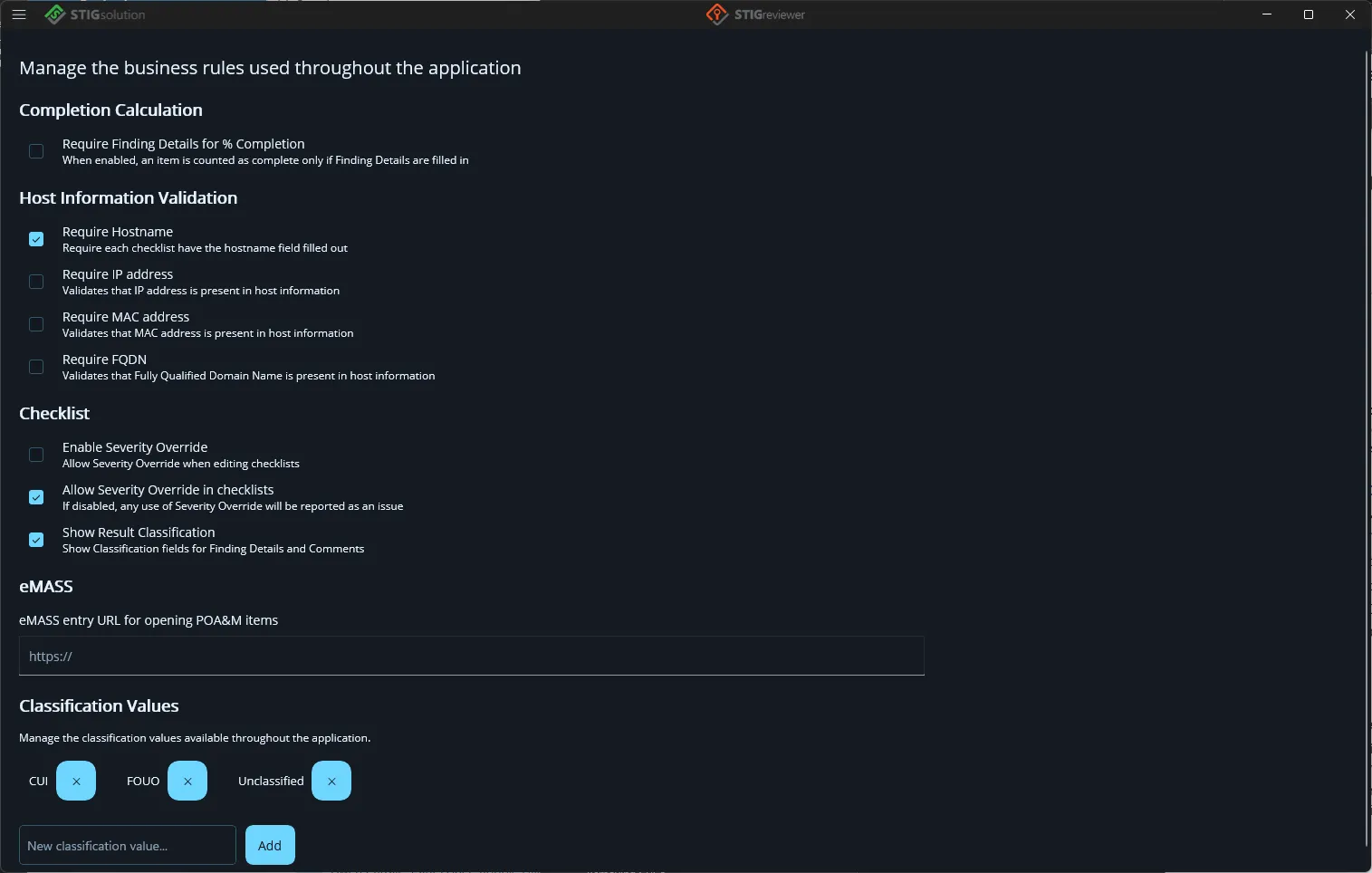
Completion Calculation
Section titled “Completion Calculation”- Require Finding Details for % Completion — when on, an item is only counted toward the % Complete column if it has Finding Details filled in. When off, any item with a chosen status counts as complete.
Host Information Validation
Section titled “Host Information Validation”These four checkboxes drive the Host Information Issues card on the Checklists inventory. Turn on the fields you want to require:
-
Require Hostname.
-
Require IP address.
-
Require MAC address.
-
Require FQDN.
Any checklist that is missing one of the required fields will be flagged on the inventory page.
Checklist
Section titled “Checklist”-
Enable Severity Override — allow users to use Severity Override when editing items.
-
Allow Severity Override in checklists — if turned off, every item that has Severity Override set will be reported on the inventory as a Severity Override Issue.
-
Show Result Classification — when on, a small classification picker appears next to Finding Details and Comments so each entry can be marked with a classification.
-
Default CCI for STIG items with no CCI — some older STIGs contain checks that are not mapped to a CCI. In that situation, STIGreviewer can substitute the value you enter here (for example, CCI-000366). Leave this box empty to use no default. This setting used to live on the Checklists page and has been moved here so it is applied consistently across every checklist you open.
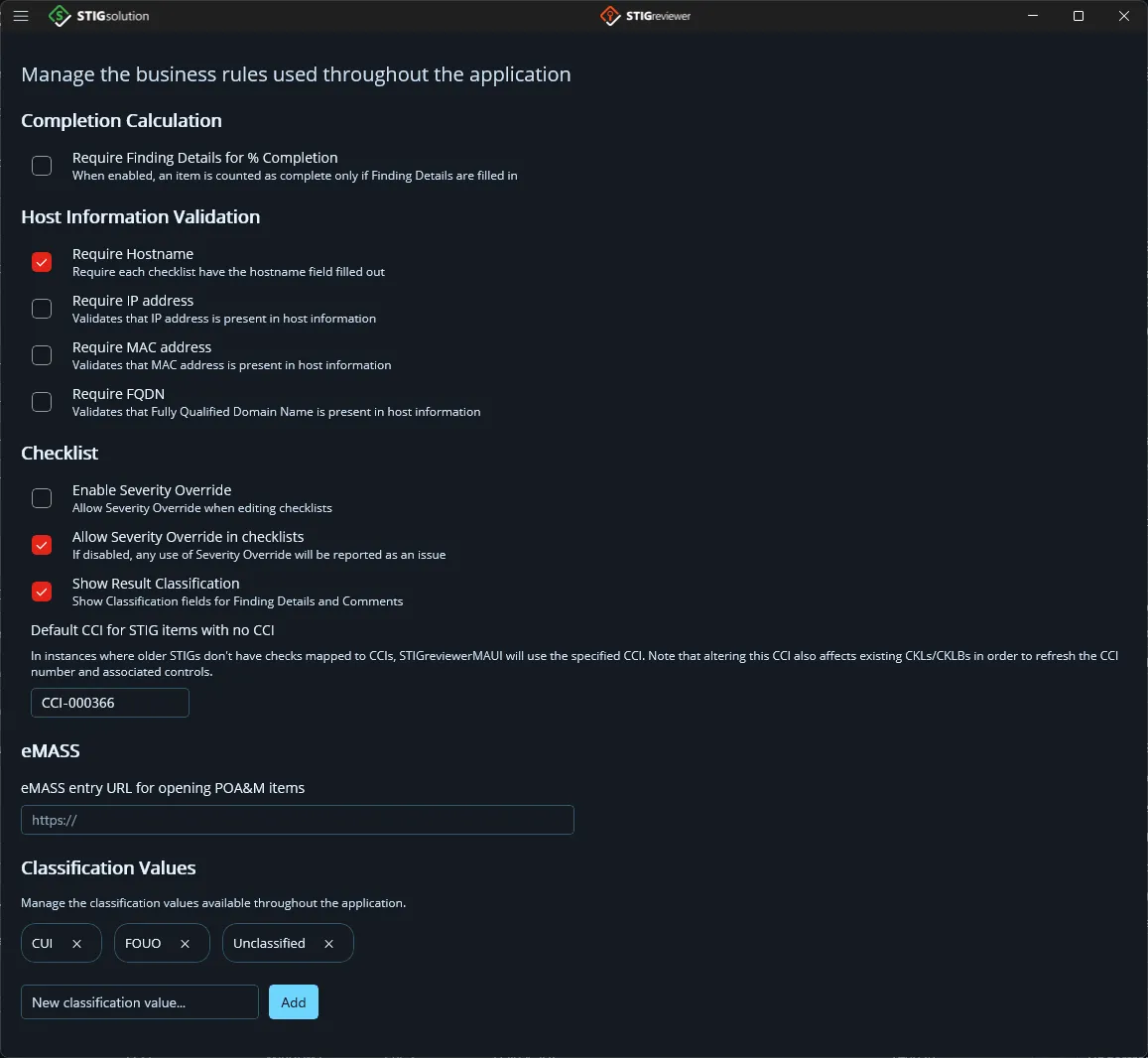
- eMASS entry URL for opening POA&M items — the URL that the View POA&M Entry button uses to open a POA&M record in your browser. Enter the full URL beginning with https://.
Classification Values
Section titled “Classification Values”The Classification Values section lists the classifications that are available throughout the application — for example, when STIGreviewer creates a new checklist, when the Show Result Classification picker is shown, and so on. Each value appears as a chip with an ✕ button to remove it. To add a value, type it into the New classification value box and click Add.