The STIG Library
The STIG Library is your local collection of DISA STIG XML files. The library is read on startup and used by the application for several jobs: creating new blank checklists, refreshing existing checklists with the latest STIG version, and flagging checklists that use a STIG you don’t have in your library.
Adding STIGs to the library
Section titled “Adding STIGs to the library”-
Click Add STIGs (XML\ZIP) on the STIG Library page. Pick one or more STIG XML files or ZIP archives — or drag and drop them onto the page.
-
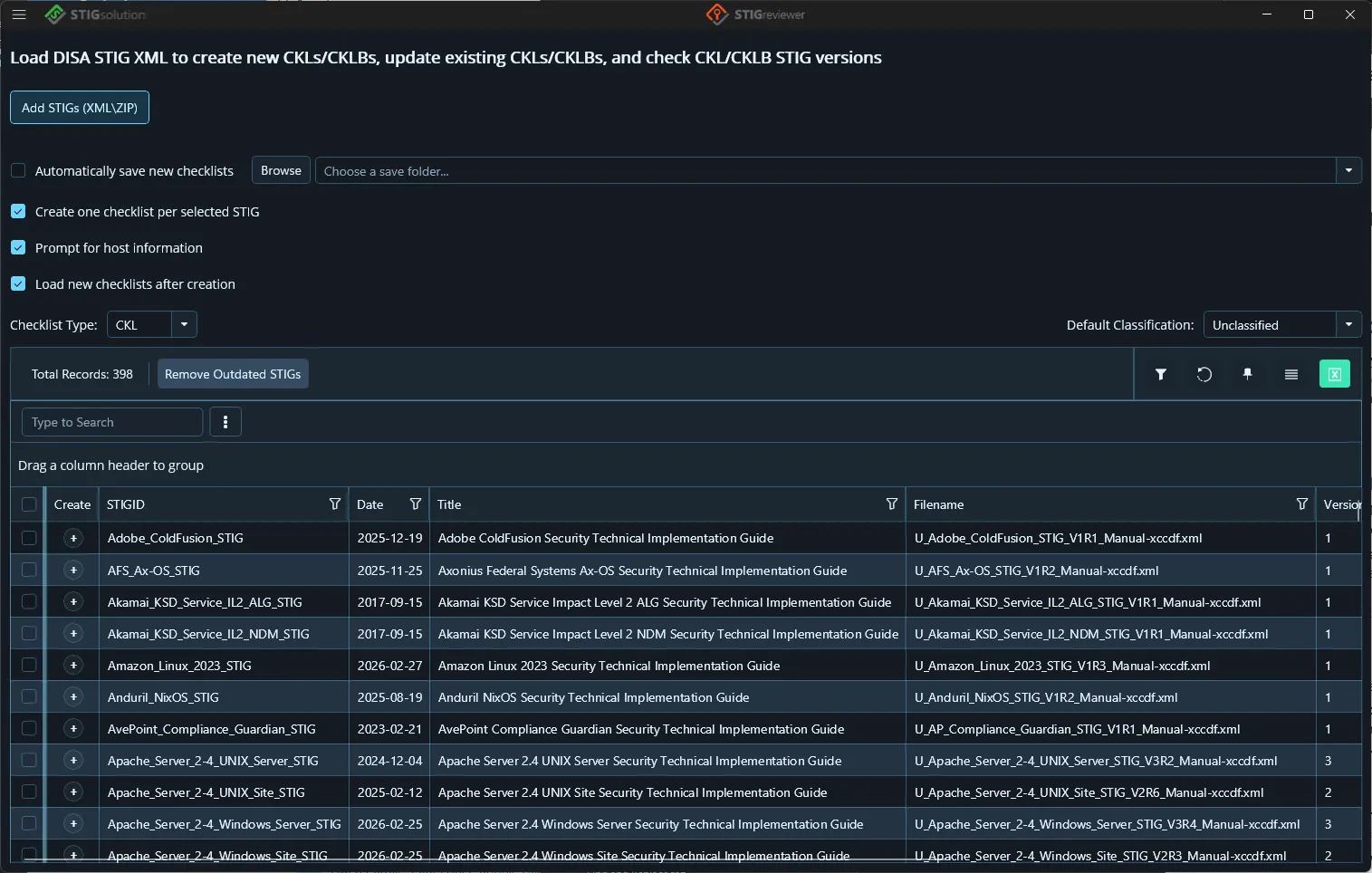
Each STIG is added to the grid. The grid shows STIG ID, the date, title, filename, version, release, and STIG release information.
Creating new checklists from STIGs
Section titled “Creating new checklists from STIGs”Above the grid is an Options block. The settings there control how new checklists are created:
-
Automatically save new checklists — if turned on, every new checklist is saved straight to the folder you pick with the Browse button.
-
Create one checklist per selected STIG — if turned on, each STIG you create gets its own file. If turned off, multiple STIGs can be combined into a single multi-STIG checklist.
-
Prompt for host information — if turned on, you will see the Enter Host Information dialog as the new checklist is created, so you can fill in hostname, IP, MAC, and FQDN up front.
-
Load new checklists after creation — if turned on, the newly created files appear in the Checklists inventory automatically.
-
Checklist Type — choose between CKLB and CKL for the new files.
-
Default Classification — the classification that will be applied to new checklists (drawn from the values on the Business Rules page).
To create a checklist:
-
Either select one or more rows in the grid and click Create in the left toolbar, or click the + button in the Create column of a single row.
-
If you turned on Prompt for host information, fill in the Enter Host Information dialog and click Add Host Info.
-
The new checklist (or checklists) are written to the auto-save folder, if configured, and optionally loaded into the inventory.
Removing STIGs
Section titled “Removing STIGs”Use the checkboxes to select STIGs in the library, then click Remove. If any STIGs in your library are older than another version you also have loaded, an Remove Outdated STIGs button appears that will clean those up in one click.