Importing and exporting
Each open checklist has an Import and an Export dropdown in the editor toolbar. These let you pull data into the open checklist or push the open checklist out in a different format.
Importing into the open checklist
Section titled “Importing into the open checklist”The Import dropdown offers three options:
-
Excel — import answers from an Excel spreadsheet. This option will ask for header row and mappings for applicable fields for the import. Spreadsheets do not require a specific format to be imported.
-
SCAP(XCCDF) — import results from a SCAP XCCDF scanner output. STIGreviewer will match the scanner results against the items in the open checklist and update their statuses.
-
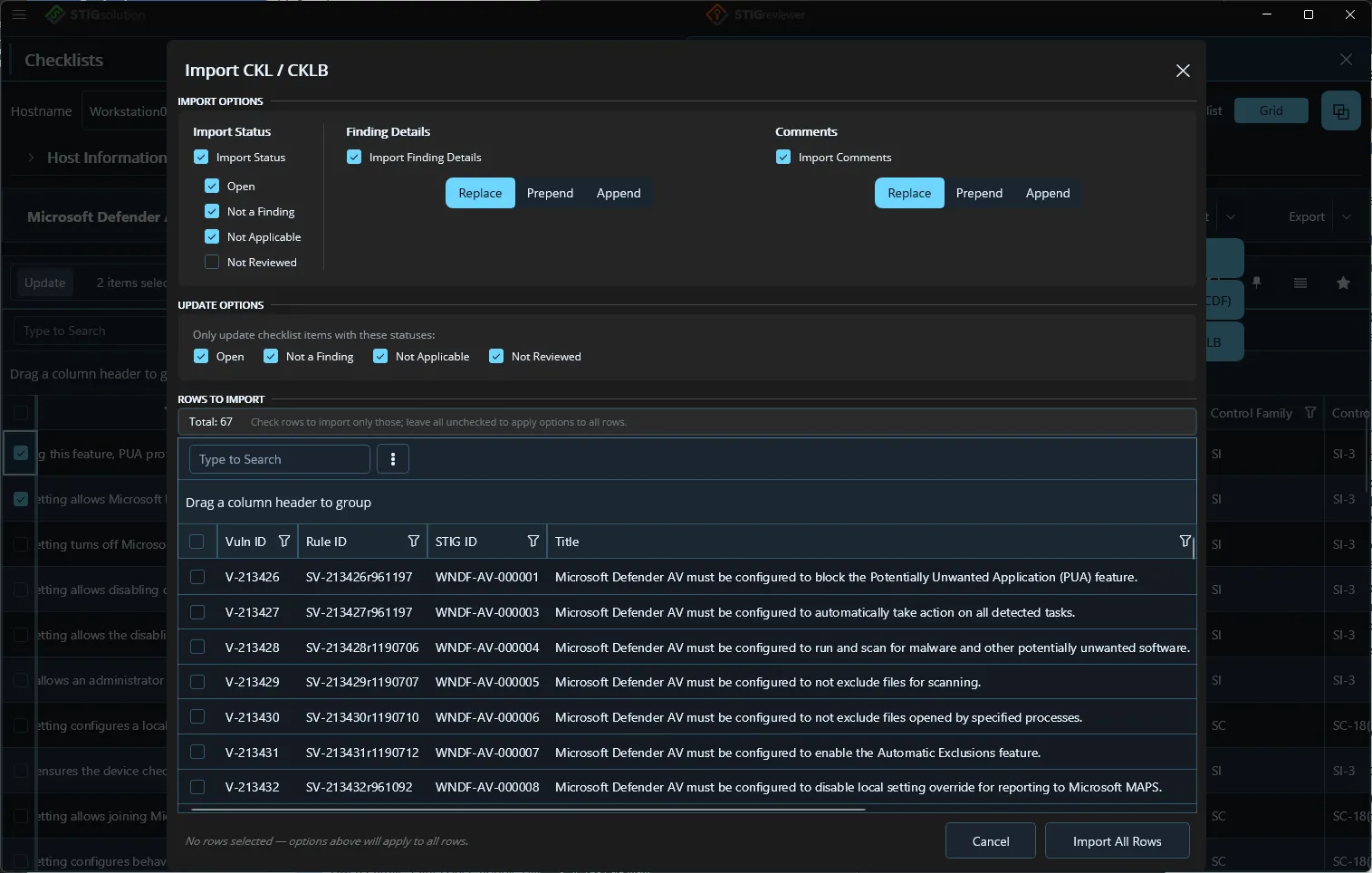
CKL\CKLB — import from another checklist. This opens a larger popup with more options (see below).
Importing from another CKL or CKLB
Section titled “Importing from another CKL or CKLB”The CKL\CKLB import popup is divided into three sections. The Finding Details and Comments panels now have their own Replace / Prepend / Append segmented control (previously this option was only available for SCAP imports), so you can decide for each side how the incoming text merges with what’s already in the checklist.
-
Import Options — the new Import Status column at the top left has a master checkbox with four sub-checkboxes: Open, Not a Finding, Not Applicable, and Not Reviewed. Uncheck any status you do not want to bring in. For Finding Details and Comments, use the Replace / Prepend / Append segmented control on each panel to decide how the incoming text merges with what’s already there. There is also a match warning banner at the top of the popup that appears when the source and target don’t align.
-
Update Options — restrict which items in the target checklist will be updated, by their current status.
-
Rows to Import — a grid with one row per item from the source file. Check the rows you want to import. If the source and target don’t match on every item, a warning banner explains the discrepancy.
Click Import All Rows (or Import Selected Rows) at the bottom to finish.
Importing from a SCAP scan
Section titled “Importing from a SCAP scan”When you choose SCAP(XCCDF) from the Import dropdown, the same import popup opens, but two of its panels change to fit the kind of data a SCAP scanner produces. Instead of generic Finding Details and Comments panels you will see:
-
Test Result (message) — the descriptive message the scanner produced for each check. Turn on the “Import Test Result” checkbox, then pick the Destination (Finding Details or Comments) and a Merge Mode (Replace, Prepend, or Append) for the imported text. By default this lands in Finding Details.
-
Tool Result (tool / time / result) — metadata about the scanner run itself: which tool, when it ran, and what it produced. Turn on the “Import Tool Result” checkbox, pick the Destination, and pick a Merge Mode. By default this lands in Comments.
The Import Options for status (Open, Not a Finding, Not Applicable, Not Reviewed), the Update Options panel, and the Rows to Import grid work the same as the CKL\CKLB import. An italic label in the footer reminds you which import mode is currently active.
Exporting the open checklist
Section titled “Exporting the open checklist”The Export dropdown lets you save the open checklist in a different format:
-
PDF — a printable report.
-
Word — a fully editable document.
-
Excel — one row per item, useful for further analysis.
-
CSV — same as Excel but in plain CSV.
Looking up a finding in eMASS
Section titled “Looking up a finding in eMASS”If you have loaded an eMASS POA&M and the currently selected item has a matching POA&M record, a View POA&M Entry button appears in the editor toolbar. Click it to open the eMASS POA&M entry to view it. There will also be a button to open the POA&M item in your default browser in eMASS. The URL used for this lookup is set on the Business Rules page (see chapter 15).