Loading checklists
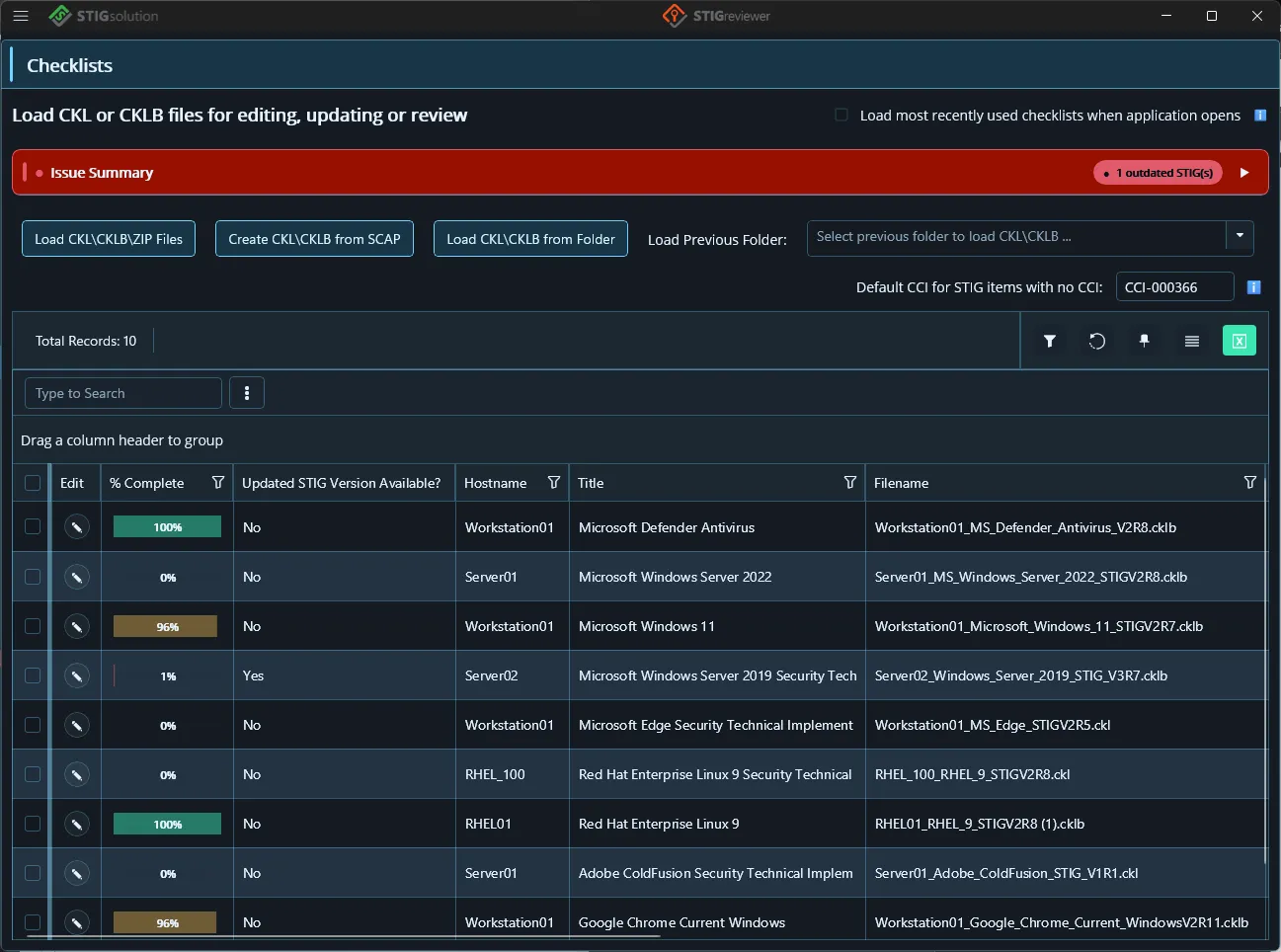
The Checklists page is where you spend most of your time. The first tab, labeled Checklists, is the inventory of every CKL and CKLB file you have loaded. There are several ways to add checklists to the inventory.
Loading individual files
Section titled “Loading individual files”-
Click Load CKL\CKLB\ZIP Files in the action button row.
-
In the file dialog, select one or more files. You can pick CKL (XML), CKLB (JSON), or ZIP files.
-
The selected files load into the inventory grid. If you selected a ZIP, STIGreviewer reads it and loads every CKL and CKLB inside, including any nested ZIPs.
Loading every checklist in a folder
Section titled “Loading every checklist in a folder”-
Click Load CKL\CKLB from Folder.
-
Choose a folder. STIGreviewer scans the folder and all its subfolders for CKL and CKLB files and loads everything it finds.
The folder you chose is remembered. The next time you want to reload it, open the Load Previous Folder drop-down and pick it from the list — STIGreviewer will reload it immediately.
Drag and drop
Section titled “Drag and drop”You can also drag any combination of CKL, CKLB, and ZIP files (or whole folders) from your file browser and drop them onto the Checklists page. The page shows a drop overlay that says “Drag and drop files or folders here to load, or use the options above” when no files are loaded yet.
Creating a new checklist from a SCAP scan
Section titled “Creating a new checklist from a SCAP scan”If you have a SCAP XCCDF result file from a scanner, you can turn the results directly into a new checklist:
-
Click Create CKL\CKLB from SCAP.
-
Pick the SCAP XCCDF XML file.
STIGreviewer generates a new checklist using the appropriate STIG (from your STIG Library) and pre-populates the results from the scan.
Automatically reloading your last session
Section titled “Automatically reloading your last session”In the top right of the inventory tab there is a checkbox labeled Load most recently used checklists when application opens. Turn this on if you want STIGreviewer to reload the same set of checklists every time you start the application.