Bulk updating items
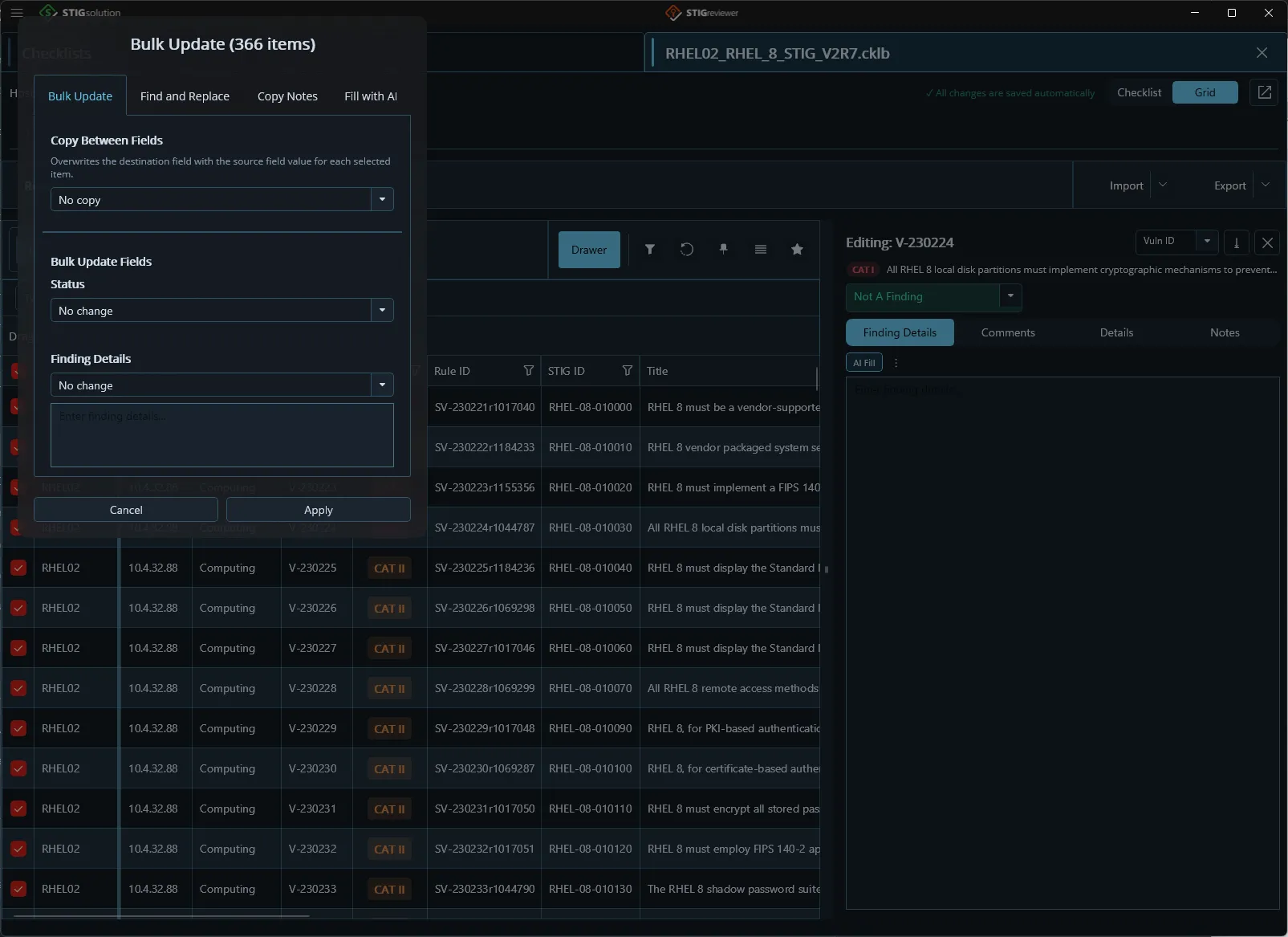
When you need to apply the same change to many items inside a single checklist, use the Update button in the items toolbar. Update is only enabled when at least one row is selected with the checkboxes. Clicking Update opens the Bulk Update popup, which has three tabs by default and a fourth “Fill with AI” tab that appears when AI is configured (see chapter 16).
Bulk Update tab
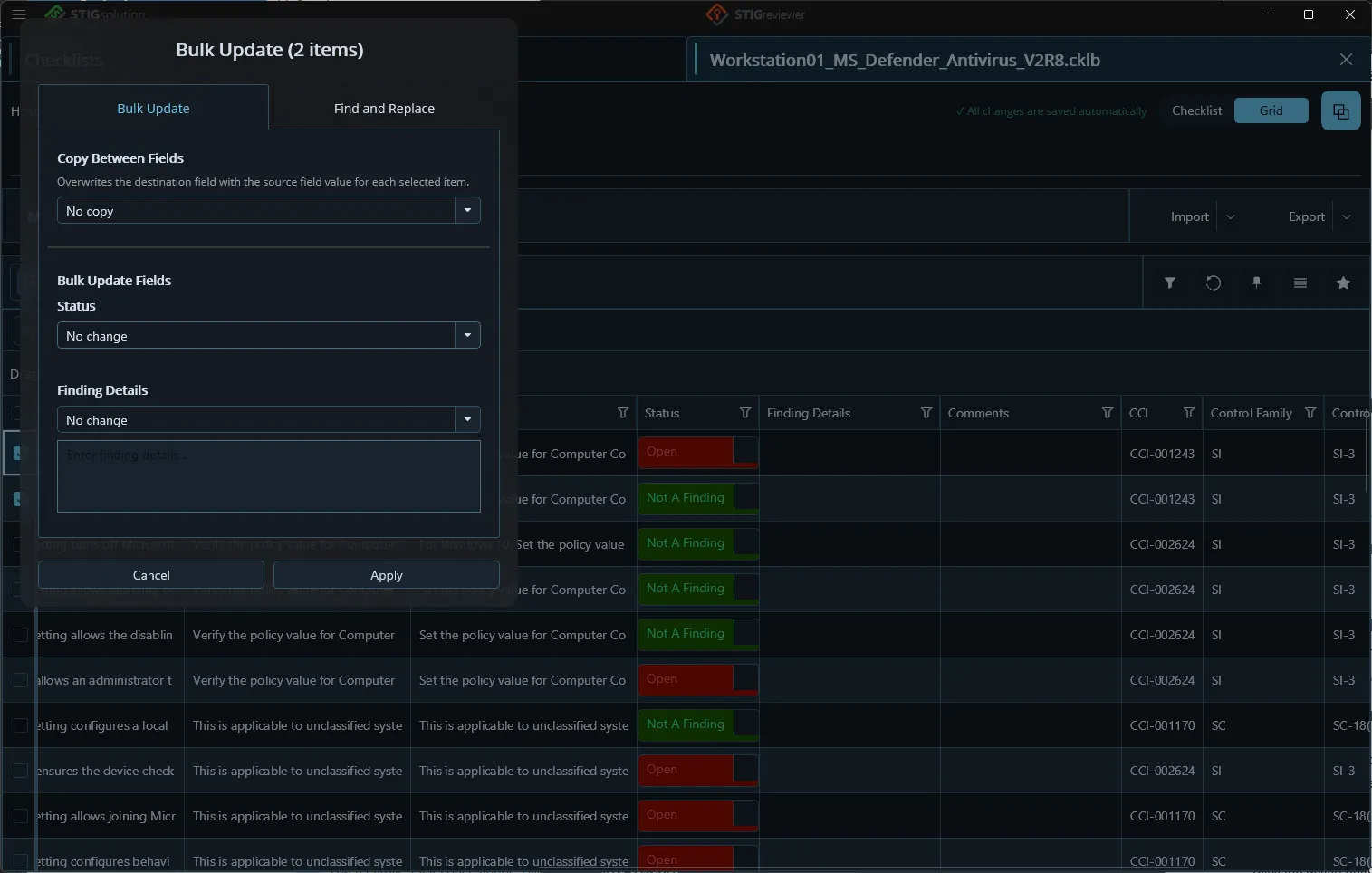
Section titled “Bulk Update tab”This tab applies a uniform change across all the selected items:
-
Copy Between Fields — pick a copy direction (for example, copy Finding Details into Comments). For each selected item, the source field’s value overwrites the destination field. Leave the picker on its placeholder “Select copy direction…” if you don’t want this part to run.
-
Status — pick a new status to apply, or leave it alone.
-
Finding Details — pick an action (Replace, Prepend, Append, or Leave Alone) and type the text. The action controls whether your text overwrites existing content, is added to the top, or is added to the end.
-
Comments — same options as Finding Details.
Click the action button at the bottom to apply the changes. STIGreviewer autosaves each item as it goes.
Find and Replace tab
Section titled “Find and Replace tab”This tab does a search-and-replace across the selected items:
-
Field to Search — choose which field to search in.
-
Find Text — the text you want to find.
-
Replace With — the text you want to put in its place.
-
Case Sensitive — turn on if uppercase and lowercase should be treated as different.
Click Preview Matches to see what would change before you commit. When you are happy, click the apply button to make the changes.
Copy Notes tab
Section titled “Copy Notes tab”The third tab, Copy Notes, copies notes from the shared notes file into a checklist field for each of the selected items. Use it when you want your notes to end up inside the checklist itself (for example, in Finding Details or Comments) as part of a delivery.
-
Target field — pick which checklist field the notes should be copied into.
-
How to combine — when there are multiple notes for one item, choose how they should be combined into the target field (e.g., joined or listed).
-
Which notes — limit which notes are pulled in (all, most recent, etc.).
Fill with AI tab (when configured)
Section titled “Fill with AI tab (when configured)”Once you have connected an AI provider on the AI Settings page (see chapter 16), the Bulk Update popup shows a fourth tab: Fill with AI. Use it to run a prompt against every selected item and drop the response into Finding Details or Comments.
-
Field to fill — pick whether the AI response goes into Finding Details or Comments.
-
Prompt — choose the prompt to run from your library. You edit and add prompts on the AI Settings page.
-
Fields to send with the prompt — tick the fields (Vuln ID, Title, Check Text, etc.) that should ride along with the prompt as a labeled context block.
Click the apply button to run. STIGreviewer generates each response in parallel — the number of requests that run at once is controlled by the Bulk fill concurrency setting on the AI Settings page. A busy overlay shows “Generating X of N…” and a Cancel button while the batch runs.